> ## Documentation Index
> Fetch the complete documentation index at: https://docs.islandlegaltech.com/llms.txt
> Use this file to discover all available pages before exploring further.
# Adding a Co-Worker to the Solution
> How an admin invites a user and how the user joins
Bringing a co-worker onto the JurisLit suite is a two-part process: an **Admin** sends an invitation from the dashboard, and the invited **User** completes their account setup from the email they receive. This guide walks through both sides.
## For Admins: Inviting a User
Admins manage who has access to the solution directly from the admin dashboard.
Sign in using a username and password that has admin rights.
From the admin dashboard, locate the **user management** section in the sidebar.
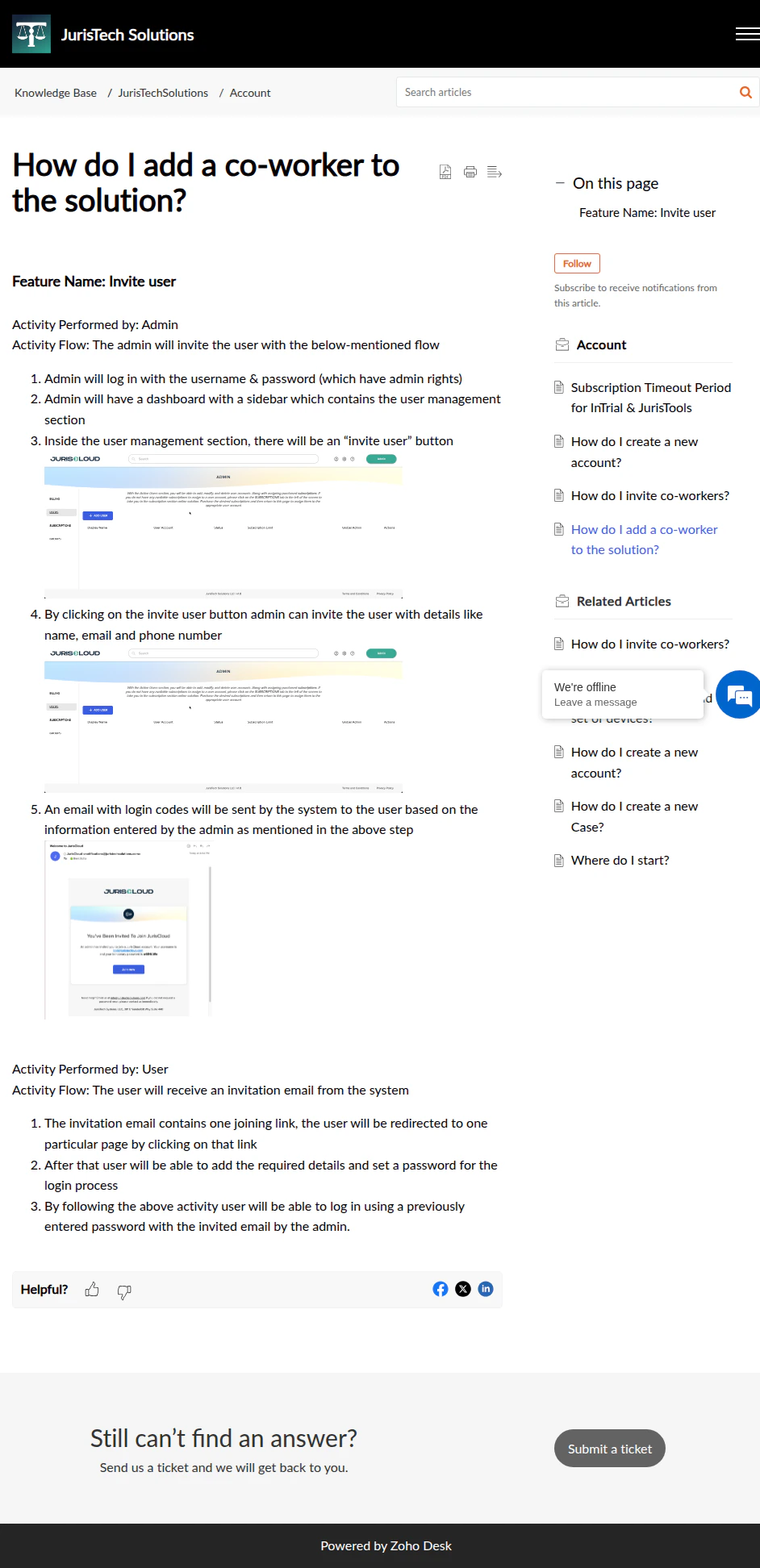
Inside user management, select the **Invite user** button to start a new invitation.
Provide the user's **name**, **email**, and **phone number**, then submit the invitation.
Based on the information you entered, the system emails login codes to the user so they can join.
 Detailed step-by-step screenshots for this section are being finalized.
## For Users: Joining the Solution
Once an admin sends the invitation, the new co-worker completes setup from their inbox.
The invitation email contains a joining link. Click it to be redirected to the account setup page.
Fill in the required details and choose a password for your account.
You can now log in using the invited email address and the password you just set.
Be sure to use the same email address the admin used for your invitation when logging in for the first time.
## Explore the JurisLit Suite
Once your co-worker has joined, they can access the products their seat is licensed for.
Desktop eDiscovery and ingest engine for case building and discovery processing.
Desktop workspace for document review, tagging, and markup.
Cloud sync layer and gateway for cross-device and cross-firm collaboration.
iPad-first, offline-resilient trial-presentation app.
Detailed step-by-step screenshots for this section are being finalized.
## For Users: Joining the Solution
Once an admin sends the invitation, the new co-worker completes setup from their inbox.
The invitation email contains a joining link. Click it to be redirected to the account setup page.
Fill in the required details and choose a password for your account.
You can now log in using the invited email address and the password you just set.
Be sure to use the same email address the admin used for your invitation when logging in for the first time.
## Explore the JurisLit Suite
Once your co-worker has joined, they can access the products their seat is licensed for.
Desktop eDiscovery and ingest engine for case building and discovery processing.
Desktop workspace for document review, tagging, and markup.
Cloud sync layer and gateway for cross-device and cross-firm collaboration.
iPad-first, offline-resilient trial-presentation app.