> ## Documentation Index
> Fetch the complete documentation index at: https://docs.islandlegaltech.com/llms.txt
> Use this file to discover all available pages before exploring further.
# Adding a Subscription for More Devices
> Purchase a subscription for an additional set of devices
Need to run JurisTrial on another set of devices? An account administrator can purchase an additional subscription from JurisPrep and share the resulting subscription code with the device user. This guide walks through both sides of the process: the administrator who buys the subscription, and the JurisTrial app user who redeems the code.
 ## Before You Begin
Make sure you have the following ready:
| Requirement | Who needs it |
| ------------------------------------------------- | ------------------- |
| An account with administrator access | Admin |
| The JurisPrep cloud portal | Admin |
| The JurisTrial app installed on the target device | JurisTrial App User |
| The subscription code from the administrator | JurisTrial App User |
Subscriptions are licensed per set of devices. Each additional set requires its own subscription and its own activation code.
## For the Administrator
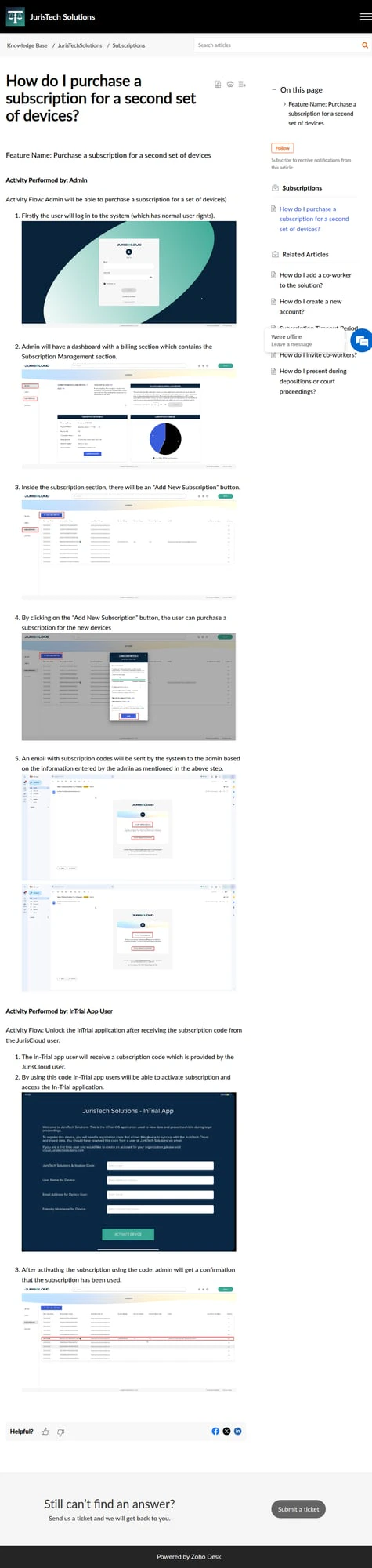
As an administrator, you can purchase a subscription for an additional set of device(s) from within JurisPrep. Once the purchase is complete, JurisPrep generates a subscription code that you pass along to the person using the new devices.
Log in to your JurisPrep account using your administrator credentials.
Navigate to the subscriptions section of your account to manage and add device licenses.
Choose to add a subscription for an additional set of devices and complete the checkout.
After the purchase is confirmed, JurisPrep provides a subscription code. Share this code with the JurisTrial app user who will activate the new devices.
Detailed step-by-step screenshots for this section are being finalized.
## For the JurisTrial App User
Once you receive the subscription code from the JurisPrep user, you can unlock the JurisTrial application on your device.
Launch the JurisTrial application on the device you want to activate.
When prompted, enter the subscription code provided by your administrator.
Confirm the code to unlock JurisTrial. The application is now activated for use on this set of devices.
Detailed step-by-step screenshots for this section are being finalized.
Keep your subscription code private. Anyone with the code could use it to activate JurisTrial. If you believe a code has been shared in error, contact your administrator to review your account's subscriptions.
## Related Articles
Review and manage the subscriptions on your account.
Step through unlocking the JurisTrial app on a new device.
## Before You Begin
Make sure you have the following ready:
| Requirement | Who needs it |
| ------------------------------------------------- | ------------------- |
| An account with administrator access | Admin |
| The JurisPrep cloud portal | Admin |
| The JurisTrial app installed on the target device | JurisTrial App User |
| The subscription code from the administrator | JurisTrial App User |
Subscriptions are licensed per set of devices. Each additional set requires its own subscription and its own activation code.
## For the Administrator
As an administrator, you can purchase a subscription for an additional set of device(s) from within JurisPrep. Once the purchase is complete, JurisPrep generates a subscription code that you pass along to the person using the new devices.
Log in to your JurisPrep account using your administrator credentials.
Navigate to the subscriptions section of your account to manage and add device licenses.
Choose to add a subscription for an additional set of devices and complete the checkout.
After the purchase is confirmed, JurisPrep provides a subscription code. Share this code with the JurisTrial app user who will activate the new devices.
Detailed step-by-step screenshots for this section are being finalized.
## For the JurisTrial App User
Once you receive the subscription code from the JurisPrep user, you can unlock the JurisTrial application on your device.
Launch the JurisTrial application on the device you want to activate.
When prompted, enter the subscription code provided by your administrator.
Confirm the code to unlock JurisTrial. The application is now activated for use on this set of devices.
Detailed step-by-step screenshots for this section are being finalized.
Keep your subscription code private. Anyone with the code could use it to activate JurisTrial. If you believe a code has been shared in error, contact your administrator to review your account's subscriptions.
## Related Articles
Review and manage the subscriptions on your account.
Step through unlocking the JurisTrial app on a new device.